USB Media Explorer
Homesoft, LLCPhotography
3.81.84K Reviews
- Version
- 11.5.2
- Installs
- 500.00K
- Age Rating
- Everyone
Screenshots

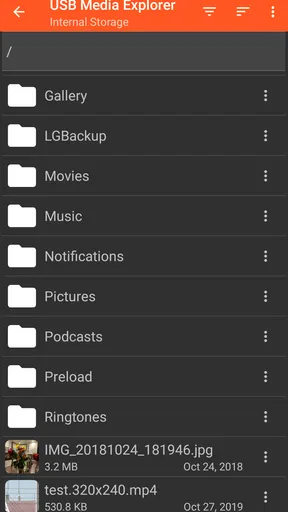
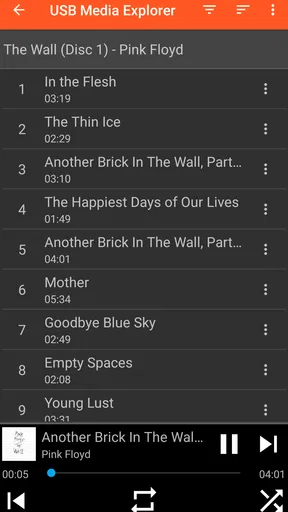
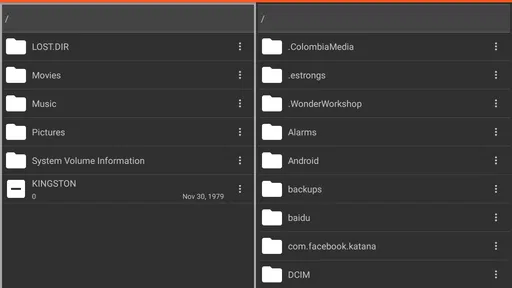

Our Review of USB Media Explorer
 Analysis by Appyee
I often run into the same small problem: a file is right there on a USB drive, but the computer I normally use is nowhere nearby. USB Media Explorer is designed for that moment, letting an Android device act as the bridge to photos, videos, music, and documents on external storage. Its appeal is practical rather than flashy: connect the drive, find what you need, and decide whether to view it, play it, or pass it on. That simple workflow is the reason I’d consider it, especially when a wireless transfer would be more hassle than plugging in.
Where it fits in a phone-first workflow
USB Media Explorer is a paid photography app from Homesoft, LLC, though its usefulness reaches beyond pictures. It costs $4.99, is rated for Everyone, and has been around since Aug 9, 2012. The current version is 11.5.2, and it requires Android 6.0 or later. Its 3.8 average from around 14,000 ratings, alongside over 500,000 installs, suggests a tool with a real audience but also one worth judging against your own device and habits rather than assuming it is essential for everyone.
The starting point matters: you need an Android device with OTG support and a compatible USB connection. If your phone lacks a matching port, an OTG adapter is part of the setup. That is an extra item to keep track of, but it can be worthwhile when you regularly work with drives. I would check the phone’s OTG compatibility before buying the app or adapter; a USB connector fitting physically does not, by itself, guarantee the whole arrangement will work.
Getting Started with USB Media Explorer
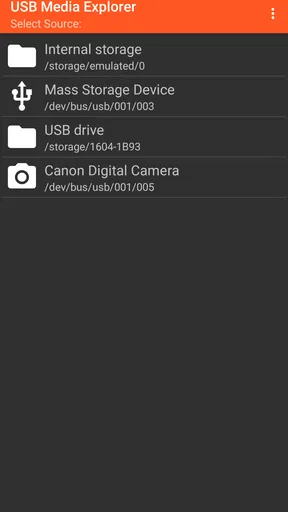
First things first, setting up USB Media Explorer is a breeze. All you need is an Android device with OTG (On-The-Go) support and a USB OTG adapter if your phone doesn’t have a direct USB port. Once you’ve got these, plug in your USB drive, launch the app, and voila! You’re ready to explore your files.
Interface and Usability
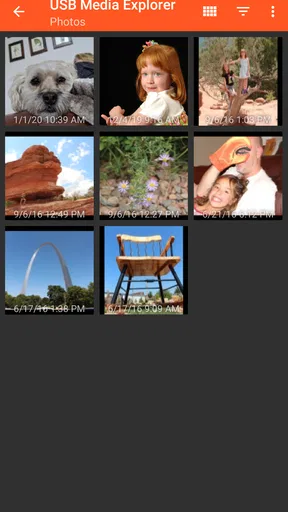
The app’s interface is straightforward and user-friendly, even if you’re not particularly tech-savvy. It’s divided into easy-to-navigate sections, allowing you to access different types of media like photos, videos, and documents. You’ll appreciate the simplicity, especially if you’re in a hurry or need to quickly find a specific file.
One thing that stood out to me was the speed. File transfers are quick, and the app doesn’t lag, which is something you don’t always get with similar apps. Plus, the app supports a wide range of file formats, so chances are, whatever you’ve got stored on your USB, you can open it here.
From the drive to the thing you need
For a real-world example, picture arriving at a meeting with reference photos on a USB stick and no laptop available. The useful sequence is not just opening the drive: find the relevant images, check that you have the right files, then move or share only what the meeting requires. That selective approach can save phone storage and reduce the chance of sending an entire folder when someone needs just a few examples.
For a photographer, the same idea can help when reviewing material away from a desk. I would treat the phone as a convenient viewing and handoff point, not as a replacement for a careful backup routine. Before deleting anything from the USB, verify that any copy you made is actually accessible in its destination. Removable storage makes files portable, but it also makes it easy to unplug the drive before a transfer or review is complete.
Features That Shine
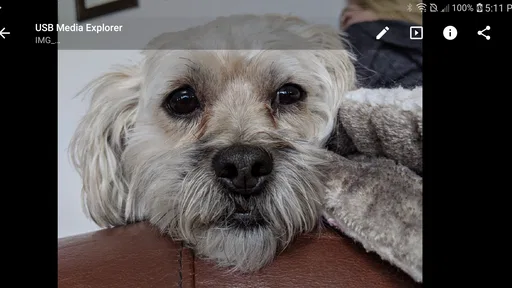
Aside from basic file management, USB Media Explorer offers features that make it more than just a file browser. You can stream videos and music directly from your USB drive without having to transfer files to your device. This is perfect for those long commutes or when you’re traveling and don’t want to fill up your phone’s storage.
Streaming directly is particularly useful when you want to sample a large video or a playlist without keeping another copy on the phone. The trade-off is that playback depends on the drive staying connected, so this is better for a stationary break or a stable setup than for handling your phone freely while moving. If you need uninterrupted playback with no cable attached, downloading or syncing the media beforehand is the more dependable option.
The app also supports cloud storage integration. If you need to move files from your USB to a cloud service like Google Drive, you can do it directly within the app. It’s seamless and saves you from having to juggle multiple apps.
Handing files off without making a mess
A USB-to-cloud move can be handy when a colleague needs a document or when you want another copy of selected photos. I would do it in small, deliberate batches: choose the files, send them to the destination, then open the destination and make sure the expected items arrived. That check is useful because the phone is handling two separate steps—reading from removable storage and handing files to another service—and a successful selection is not the same thing as confirming the final copy.
For a quick handoff to another person, consider whether the USB route is actually the simplest one. If the files are already in a shared cloud folder, using that folder may avoid carrying an adapter and drive. If the files are only on the USB, however, direct access from the phone can spare you the detour of finding a computer. The best route depends on where the files start and where they need to end up.
Security and Privacy
In today’s digital age, security is a big concern. I was pleased to find that USB Media Explorer doesn’t require internet access for basic file operations, which adds a layer of privacy when handling sensitive data. Moreover, the app doesn’t ask for unnecessary permissions, so you can use it with peace of mind.
For sensitive work, I would still think about the whole chain, not just the app: the drive, the phone, and any place you choose to send a file. Local access is useful when you want to inspect something without uploading it, while a cloud handoff changes where that file is stored. Keep the original on the drive until you have checked the new copy, and avoid moving confidential material to a destination that is not appropriate for it.
What to check when a drive does not appear
The main friction point is the physical connection. If the drive is not recognized, I would first reseat the adapter and check that the phone supports OTG, then try a different compatible drive if one is available. That simple isolation step helps distinguish a connection problem from an issue with the particular storage device. It is also sensible to avoid assuming that every USB accessory will behave alike just because it uses the same plug.
Power can be another practical consideration with a phone-and-drive setup: a device may be less convenient if the drive or adapter arrangement makes the phone awkward to hold or use. For longer viewing sessions, set the phone down and keep the cable connection secure. For an urgent file grab, keep the workflow narrow—locate, copy or open what you need, confirm the result, then disconnect—rather than treating a phone as a full desktop file-management station.
Who Is This App For?
If you’re someone who frequently uses USB drives for work or personal data storage, this app is a must-have. It’s also great for photographers and videographers who need to transfer media on the go. Essentially, anyone who wants a reliable way to access and manage their external storage should give this app a try.
I’d especially consider it if USB drives are already part of your routine: someone carrying reference images, a student moving documents between devices, or a traveler who keeps media on removable storage. It is less compelling if you rarely use USB drives, already keep everything in cloud storage, or want wireless sharing as your default. In those situations, the usual gallery, cloud-storage, or file-management tools may be simpler because they avoid the extra adapter-and-drive step.
Compared with a general file manager, the reason to choose this app is its focus on making external USB media useful on an Android device, including direct playback and a route to cloud storage. A basic file manager may be enough if your phone already handles your drives comfortably and you only need occasional browsing. Conversely, wireless transfer tools make more sense when both devices are available on the same network and you want to avoid cables. I see this app as a targeted tool for a particular handoff, not a universal replacement for those alternatives.
Final Thoughts
In a world that’s increasingly moving towards wireless solutions, USB Media Explorer offers a reliable and efficient way to manage your wired storage needs. It’s intuitive, fast, and packed with features that enhance productivity. Whether you’re a tech aficionado or just someone looking for a practical solution to accessing USB files on your Android device, this app is definitely worth checking out.
My recommendation is conditional: if you can name a recurring moment when a USB drive has the file you need and a computer is not an option, this fills a useful gap. If that situation hardly ever comes up, the paid price may be harder to justify than a tool you already use. Before relying on it for travel or work, test the exact phone, adapter, and drive combination you plan to carry, and try one small file handoff from start to finish. That gives you a realistic sense of whether the physical workflow suits you.
So, next time you find yourself needing to access files from a USB drive without a computer in sight, you know what to do. Give USB Media Explorer a whirl, and let it make your mobile life a little bit easier.
Verdict
Strengths of USB Media Explorer
- Easy file management interface.
- Supports a wide range of file formats.
- Compatible with most USB drives.
- Fast data transfer speeds.
- Good customer support.
Limitations of USB Media Explorer
- Requires in-app purchases for full features.
- Occasional connectivity issues.
- Limited support for older devices.
- Interface can be confusing for beginners.
- No cloud integration options.
Similar Picks in This Category
View All
Google Photos
Google LLC4.4

Gallery
Google LLC4.2

Picsart AI Photo Editor, Video
PicsArt, Inc.3.9

B612 AI Photo&Video Editor
SNOW Corporation4.1

BeautyPlus-Selfie Photo Editor
PIXOCIAL TECHNOLOGY (SINGAPORE) PTE. LTD.4.5

Remini - AI Photo Enhancer
Bending Spoons4.1
Frequently Asked Questions
What is USB Media Explorer and how does it work?
USB Media Explorer is an app designed to access and manage files on USB drives directly from your Android device. By connecting a USB drive using an OTG (On-The-Go) cable, the app allows you to browse, view, and transfer files such as photos, videos, and documents without needing a computer.
Does USB Media Explorer support all file types?
USB Media Explorer supports a wide range of file types, including common formats like JPEG, MP3, MP4, PDF, and more. However, it may not support proprietary or less common formats. It's always a good idea to check the app's supported file list or test it with your specific file types before relying on it for critical tasks.
Is my data safe while using USB Media Explorer?
USB Media Explorer is designed with user privacy in mind, and it doesn't store your data on external servers. However, always ensure your Android device is secure and avoid using unknown USB drives to prevent data breaches or malware. It's also a good practice to back up important files regularly.
Can USB Media Explorer handle large files?
Yes, USB Media Explorer can handle large files, making it suitable for transferring videos or large documents. However, the transfer speed will depend on the USB drive and device capabilities. Ensure your device supports USB OTG and has enough storage space to manage large file transfers efficiently.
Is USB Media Explorer compatible with all Android devices?
USB Media Explorer is compatible with most Android devices that support USB OTG. However, compatibility can vary based on the device's manufacturer and software version. It's advisable to check your device's specifications or consult the app's support page to confirm compatibility before downloading.
